
Welcome to SPRCHRGR Verify App, your company's centralized approval management platform for all requests for your SPRCHRGR team. This guide will walk you through setting up your account for the first time, establishing yourself as an approver, and configuring your notification preferences to stay informed about approval requests that need your attention.
As the first person registering your company, you'll automatically become the account Owner and Administrator. This gives you full control to invite team members, assign approver roles, and manage how your organization handles approval workflows. The setup process is straightforward: create your account, verify your email, configure your approver role, and customize your notification settings. Once complete, you'll be ready to review and act on approval requests, ensuring your team can move forward efficiently while maintaining proper oversight and authorization controls.
Whether you're approving vendor payments, contract changes, or other business requests, the SPRCHRGR Verify App provides a secure, auditable system that keeps everyone informed and accountable. Let's get your account set up and ready to go.
Below are step by step guides to complete the initial onboarding process.
1. First, navigate to the SPRCHRGR APP Portal.
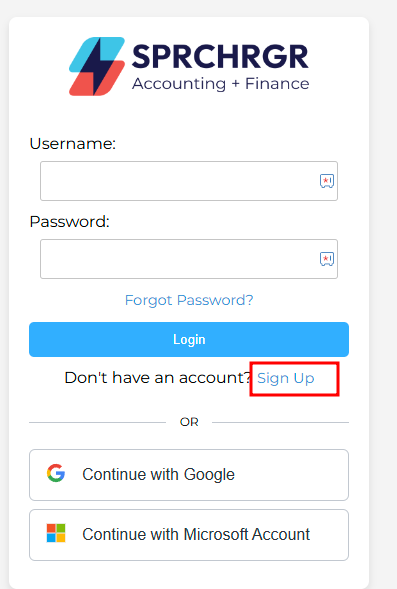
2. Select 'Sign Up'
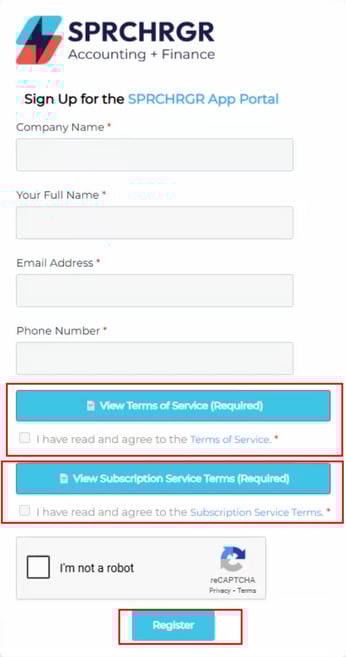
3. Enter the information on-screen. Please Note:
-
The email that is used will be made the Administrator and Owner of the account. This can be changed later after additional team members have been invited.
-
Read the all Terms and check the agreement boxes before selecting 'Register'.
-
Once registered other Team Members can be invited to the portal.
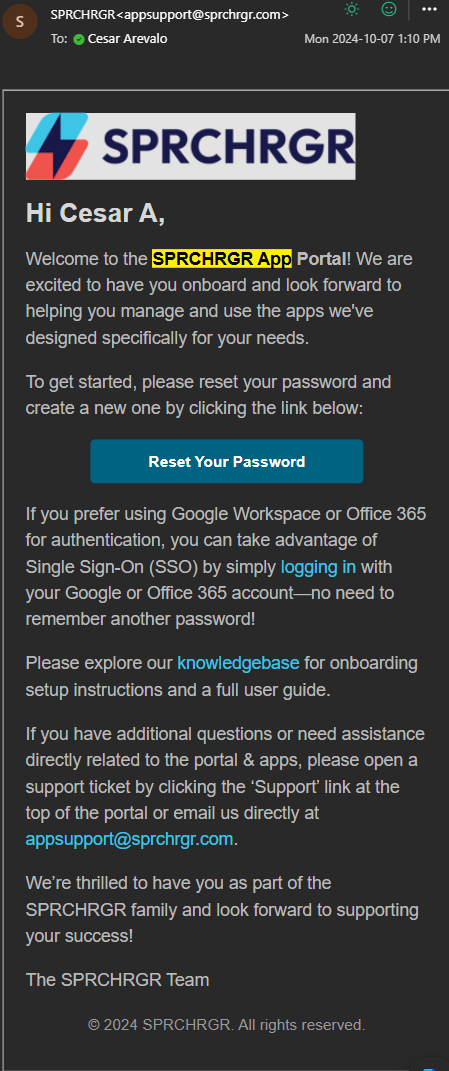
4. Once the set up is completed the Owner email will get a notification email to reset their account password:
Confirming access to the Verify App
Once you are able to successfully log in and access the SPRCHRGR App portal, follow these steps to confirm access to the Verify App:
-
First Time setup go to Verify App:
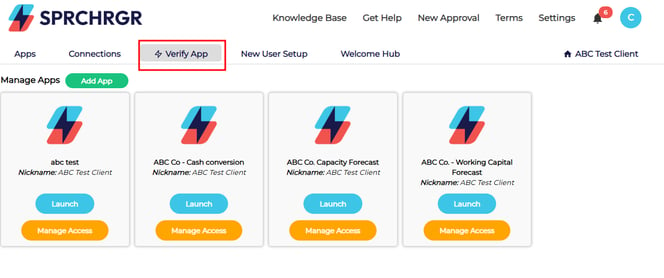
- After that, you can open the Verify App.
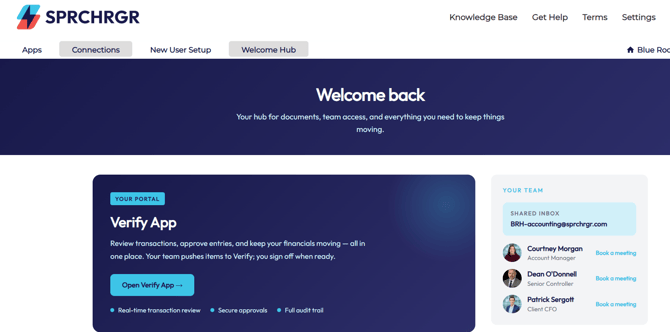
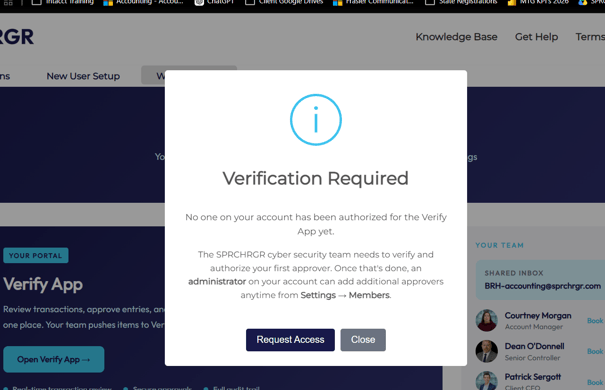
- Click on Request Access and the SPRCHRGR Security team can ensure you're set up as the Primary Approver
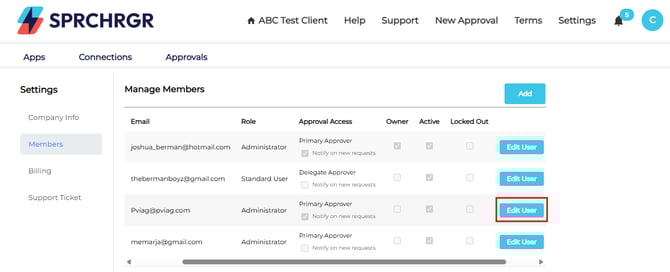
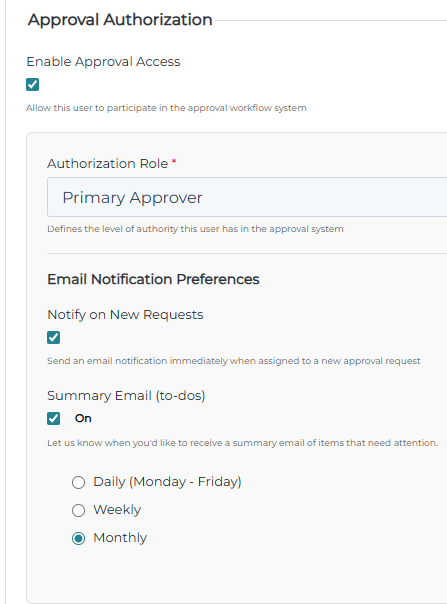
- You can then update another team member’s Approval Access by going to Settings → Members → Edit User.
- Enable Approval Access and, under Authorization Role, select Delegate Approver. Refer to the article on Understanding Approver Authorization Roles for more details.
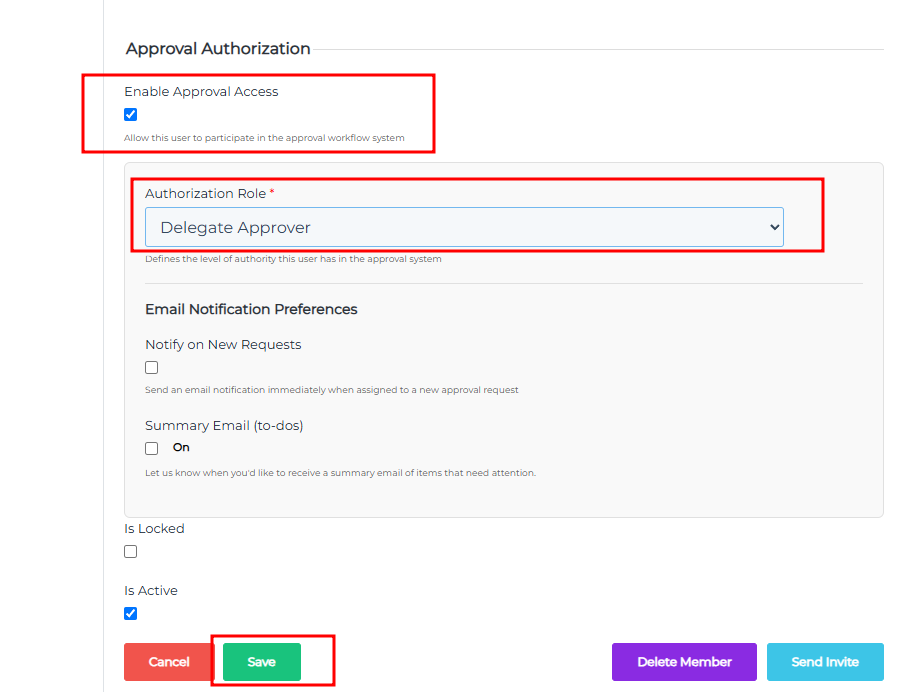
- The Email Notification Preferences allow easy configuration of your approval request notification settings. Use these settings to match notifications to your preferred workflow. Individual team members will be able to manage their own notifications settings by logging into the portal and accessing their Approval Requests List page.
- Notify on New Requests: This will trigger an email notification to be delivered each time a new approval request is submitted to which you have been assigned as an approver.
- Summary Email (to-dos): This option will trigger a digest email summarizing approval requests related to you on a periodic basis (Daily, Weekly, Monthly). This is a great option for limiting the number of email notifications that may be sent by the Verify App as multiple requests will arrive in individual digest email.
Adding Team Members
Refer to our article on Managing Team Member Access and Roles to add team members.
Questions? Contact Us