
When a new approval request is created that requires your attention, you'll typically receive an email notification with all the essential details you need to begin your review. These notifications serve as your primary alert that action is needed, providing a quick summary of what's being requested and a direct link to access the full request details in the SPRCHRGR Verify App. Understanding how to access requests—whether through email notifications, the dashboard, or the notification bell—and knowing how to navigate the approval request page ensures you can make informed, timely decisions.
The approval request details page is designed to give you everything you need in one comprehensive view: the request subject and background, supporting documents with inline preview capabilities, collaboration tools through comments, visibility into who else is assigned to review, and a complete audit trail of all activity. You can approve a request immediately if everything looks good, deny it with a required explanation if something doesn't align with company policy, or use comments to ask questions and collaborate with the requestor or other approvers before making a final decision. Primary Approvers also have the ability to bring in additional reviewers by adding Delegate Approvers to specific requests when specialized expertise is needed.
Once you take action—whether approving or denying—the request status updates immediately, becomes locked to prevent further changes, and automatic notifications are sent to keep everyone informed of your decision. This streamlined process ensures accountability, maintains a complete record of all approval activity, and keeps your business moving forward efficiently while maintaining proper oversight and control.
New Approval Request Email Notification
When a new request is created by one of your SPRCHRGR team members, or one of your team members assigns you as an approver to an existing request, you may receive an email notification that typically includes:
- Reference number
- Requestor’s name and email
- Subject line
- Request summary
- Date submitted
- Direct link to the Verify App to review the request

Use the link in the email to quickly access and review the request.
Other Ways to Access an Approval Request
If you want to access an approval request but have email notifications turned off, cannot locate the related email, or simply want to access all the requests assigned to you, follow these steps. You can also refer to our article on Accessing your Approvals Request List for more details.
- Log in to https://sprchrgr.app
- Navigate to Dashboard → Verify App
- Pending approvals appear by default. Use the status bubbles to switch between statuses.
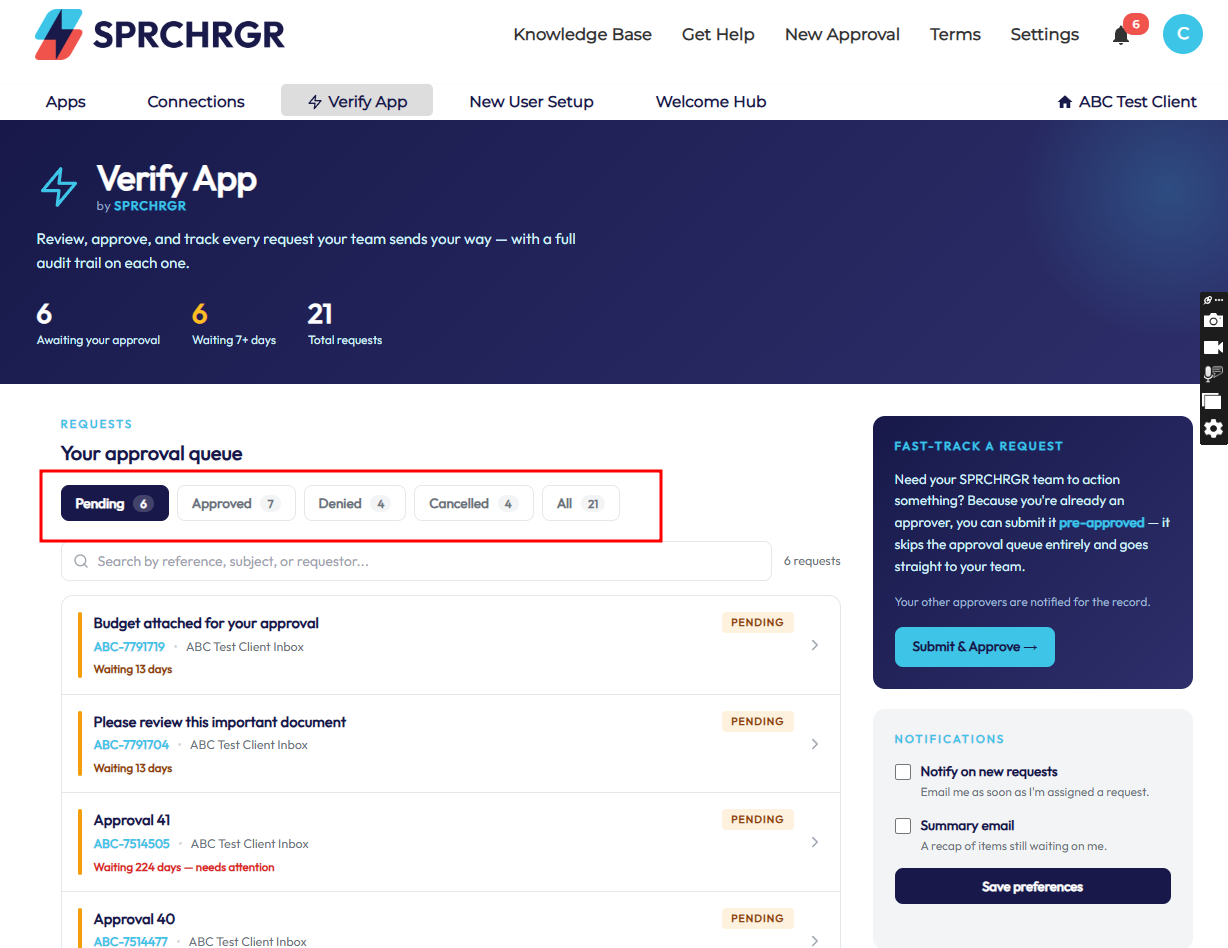
- Click the request you want to review to open its details.
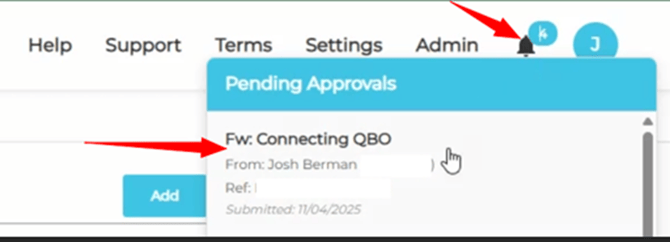
- In addition to the main approval requests list, the notification bell in the top right corner of the main navigation in the portal provides quick access to all pending approval requests you are assigned to.
Approval Request Details Page
Once you are able to access the page for an individual approval request, all of the details will be available for immediate review or download so a decision can be made. It is important to become familiar with the different section of the page to ensure you have all the information before making a decision.
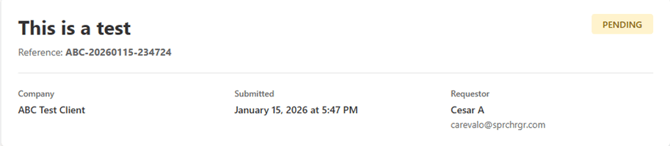
Header Section
- Subject
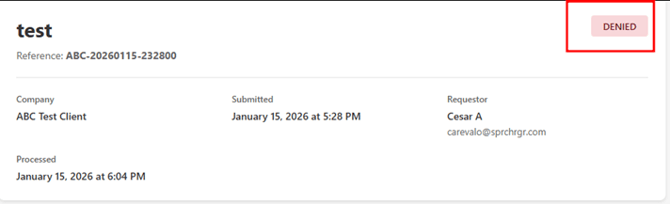
- Status (e.g., Pending, Approved, Denied, Cancelled)
- Reference number
- Your Company name
- Submitted date
- Requestor that originally submitted the approval request
Request Details section
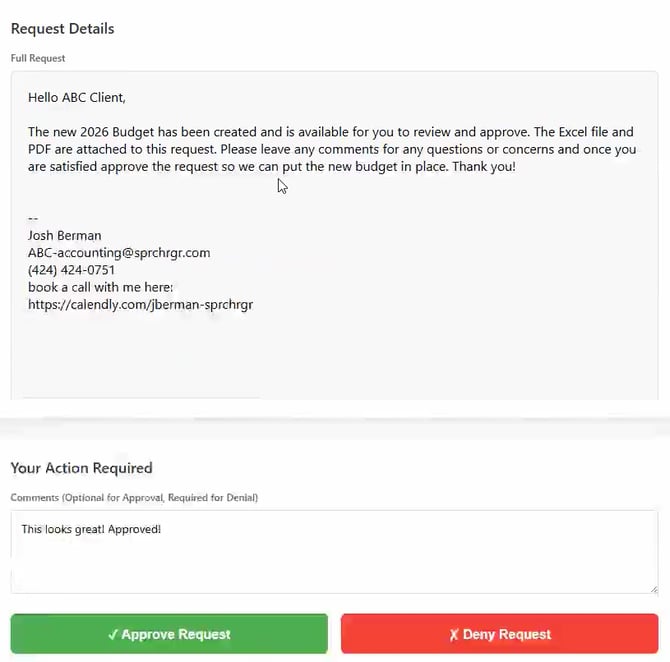
- Full request body
- Comments specific to decision (Reasons on why you approved or deny the request notifying the requestor)
- Approve and Deny buttons
Comment Section
See the article on Collaborating with Comments for details on this section.
Assigned Approvers Section
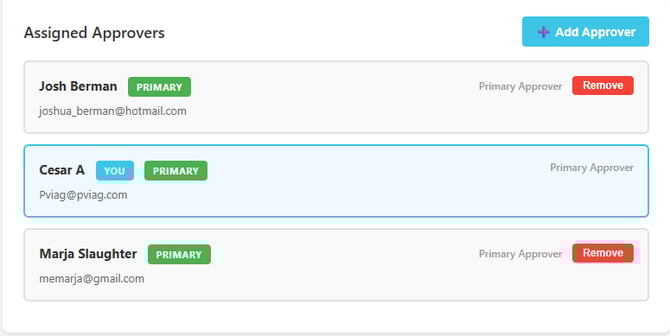
Assigned approvers that have the Primary Approver authorization role can use this section to modify the list of approvers assigned to individual approval requests. Use the Add Approver button to add a new approver, typically an approver with the Delegate authorization role. Use the Remove button to remove any currently assigned approvers if the approval request does not fall under their discretion or is not related to them.
Activity History Section
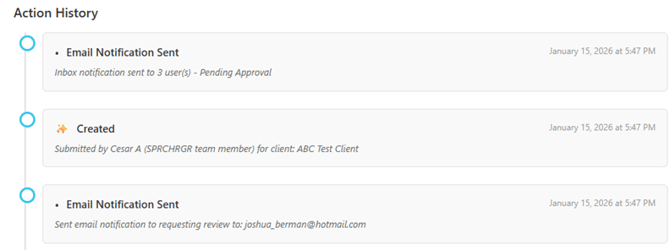
As actions are taken on the approval request they will be logged and an audit trail will be available under the Activity History.- All actions logged chronologically
- The activity history is read/view only
- Timestamps will be shown in your local time zone
Documents Section
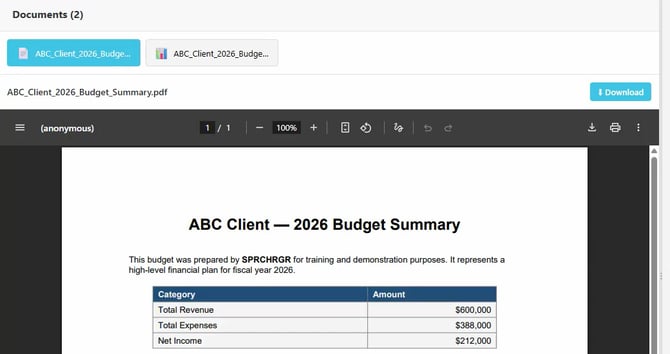
The top left section of the approval request page will include any attached documents or files that should be considered and reviewed as part of the approval process. Documents may be available to be previewed directly on the page, such as images or PDFs, and all documents attached will be available for download for review offline.
As long as the approval request is in a Pending status SPRCHRGR team members will be able to add and remove documents attached to the approval request so be sure to use the comments to notify them of any missing document or of any documents needing updates before a decision is made.
Taking Action
You may take three types of actions on a request:
- Approve Request
- Deny Request
- Comment (without making a final decision)
Approve
Steps
- Review the full request details
- Open and review any attachments as needed
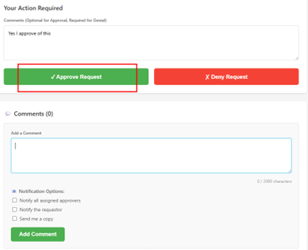
- (Optional) Add comments (e.g., clarification, conditions)
- Click Approve Request
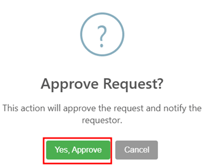
- Confirm by clicking Yes, Approve
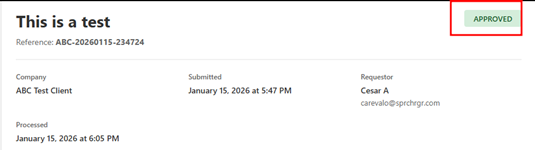
- The request status updates to Approved and moves into a locked read/view only state.
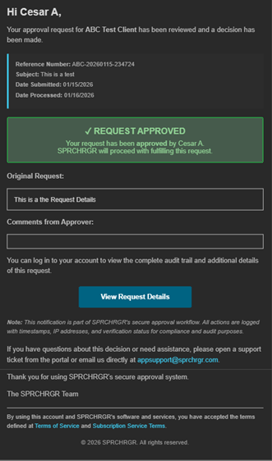
- Notifications are sent to relevant SPRCHRGR team members and/or requestors that submitted the approval request, informing them that the request has been approved
Deny
Steps
- Review the full request details
- Open and review any attachments as needed
- Enter a required denial reason (minimum of 10 characters)
- Click Deny Request
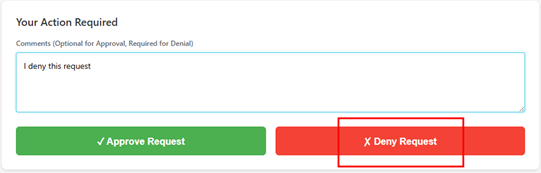
- Confirm by clicking Yes, Deny
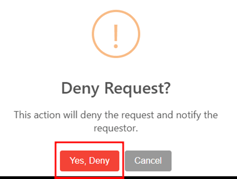
- The request status updates to Denied and moves into a locked read/view only state.
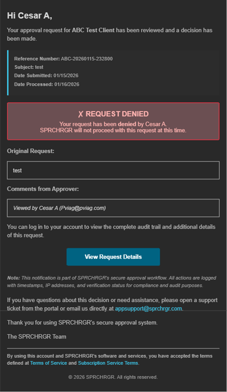
- Notifications are sent to relevant SPRCHRGR team members and/or requestors that submitted the approval request, informing them that the request has been denied
Understanding Cancelled Requests
While most approval requests result in either an approve or deny decision from your team, you may occasionally see requests with a Cancelled status. Unlike denied requests (which represent a decision you made to reject the request), cancelled requests indicate that the SPRCHRGR team determined the request is no longer needed or relevant before any approval action was taken.
Cancellations typically occur when circumstances change after the request was created—for example, if the underlying work was completed through another method, the vendor situation changed, the client's needs shifted, or there was an error in the original request submission that requires starting over. When a request is cancelled, you'll receive a notification explaining why, and the request moves to a locked, read-only state in your approval history. No action is required from you on cancelled requests—they're simply closed out to keep your pending queue focused on items that still need your decision. If you have questions about why a specific request was cancelled, the cancellation reason is documented in the request details, or you can reach out to your SPRCHRGR team contact for clarification.
Questions? Contact Us