
Even with a well-designed system, you may occasionally encounter questions or situations that need clarification. The SPRCHRGR Verify App is built to be intuitive and straightforward, but understanding how to resolve common scenarios—and when to reach out for help—ensures you can keep approval workflows moving smoothly without unnecessary delays.
Common scenarios and solutions:
"I can't see the Approve or Deny buttons on a request" – This typically means the request has already been processed by another approver, or you're not currently assigned as an authorized approver on this specific request. Check the request status at the top of the page—if it shows Approved, Denied, or Cancelled, the decision has already been made and the request is locked. If the status is still Pending but you don't see action buttons, you may have been removed from the approver list, or you might be viewing the request for informational purposes only.
"I didn't receive an email notification for a new approval request" – First, check your notification settings by navigating to Dashboard → Approvals and clicking the My Settings button. Ensure that either Notify on New Requests is enabled (for immediate alerts) or you've configured a Summary Email schedule that matches your preferences. Also check your spam or junk folder, and verify that emails from appsupport@sprchrgr.com are not being filtered. If you're a Delegate Approver, remember that you're only notified when specifically assigned to a request—you won't receive alerts for every approval that comes through like Primary Approvers do.
"I can't find an old approval request I reviewed weeks ago" – By default, the Approval Requests List shows only Pending requests. Use the Status dropdown filter at the top of the list to switch to Approved, Denied, or Cancelled to view historical requests. All approval requests you've been assigned to remain accessible indefinitely for reference and audit purposes.
"Can I change my decision after approving or denying a request?" – No. Once you approve or deny a request, it becomes locked and moves to a read-only state to maintain the integrity of the approval audit trail. All decisions are final and cannot be reversed through the system. If circumstances change after you've made a decision, or you accidentally clicked the wrong option, contact the SPRCHRGR team directly to discuss your options.
"The approval request is missing important documents or information" – Use the Comments section to notify the SPRCHRGR team or the original requestor about missing documentation. Select the appropriate notification options to alert the right people, explain what's needed, and wait for them to upload the additional materials before making your decision. Remember, only SPRCHRGR team members can upload or delete attachments while the request is pending, so clear communication through comments is essential.
"I received a notification but I'm not sure what action is required from me" – Review the email subject line and content carefully. If it says "New Approval Request" or "REMINDER," it requires you to review and make an approve/deny decision. If it says "New Comment," someone is trying to communicate with you about an existing request. If it says "New Approver Added" or "Approver Removed," it's informational only—keeping you aware of changes to who's assigned to a specific request. When in doubt, click the link in the email to view the full request details and current status.
Getting Help
If you encounter an issue that isn't covered here or need assistance with a specific approval request, the SPRCHRGR support team is ready to help. When reaching out, always include the Reference Number (e.g., REQ-12345) from the approval request you're asking about—this helps our team locate your request quickly and provide accurate assistance.
Contact SPRCHRGR Support:
Always include the Reference Number of the Approval Request
📧 Email: appsupport@sprchrgr.com
🎫 Submit a Support Ticket:
- From the SPRCHRGR App Portal : Dashboard → Support → Fill out the Ticket → Submit
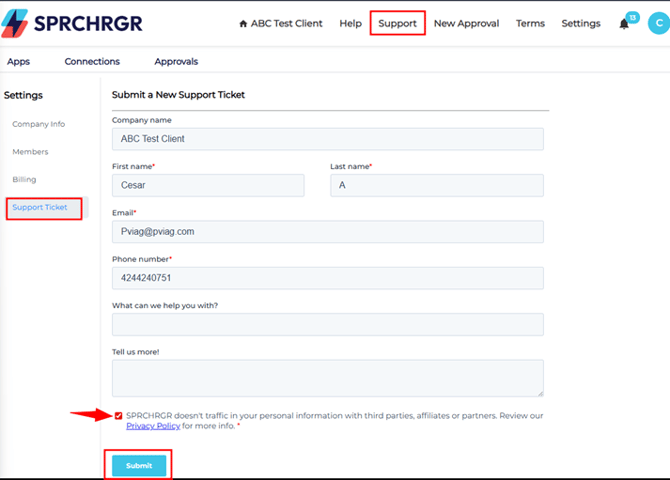
Whether you have questions about a specific approval, need help understanding notification settings, or encounter technical issues, our team is here to ensure your approval process runs smoothly.