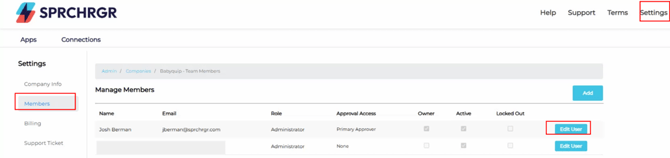
- To assign additional approvers you can go to Settings > Members > Edit User
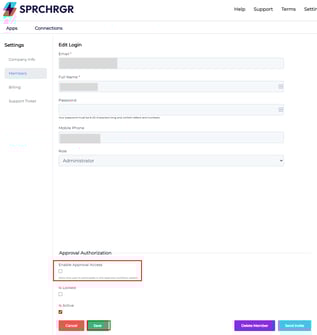
- You'll be redirect to a edit user screen, scroll to the bottom and check Enable Approval Access. Using the Dropdown select if you want to make them a primary or secondary approver, as well as the other checkboxes. Click Save.
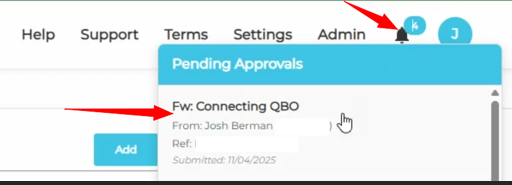
- To check for pending approvals on the top right hand you'll have a bell icon, which will notify you on what's pending.
- Once you've added the approvers, you can add them to a pending approval request by opening the request from either the notification email or the bell icon, and scrolling to the bottom of that page you'll see Add Approver.
- Removing them works the same way, just click on the remove button. Note: This will only remove them from this request; it will not remove them as an approver.

English